 Local Export for Gmail
The quick answer: select a conversation in Gmail, click Export selected, then Export ZIP in Local Export for Gmail. Extract the saved ZIP to find the conversation PDF and its original attachments.
What you need
Use desktop Chrome with Gmail open and signed in. Install Local Export for Gmail from the Chrome Web Store, then refresh Gmail so the export button appears.
Save the PDF and attachments
Select the conversation in Gmail.
Use the checkbox beside the conversation. Click the extension’s Export selected button. If you have just installed the extension, refresh the Gmail tab first.
Check the selected conversation.
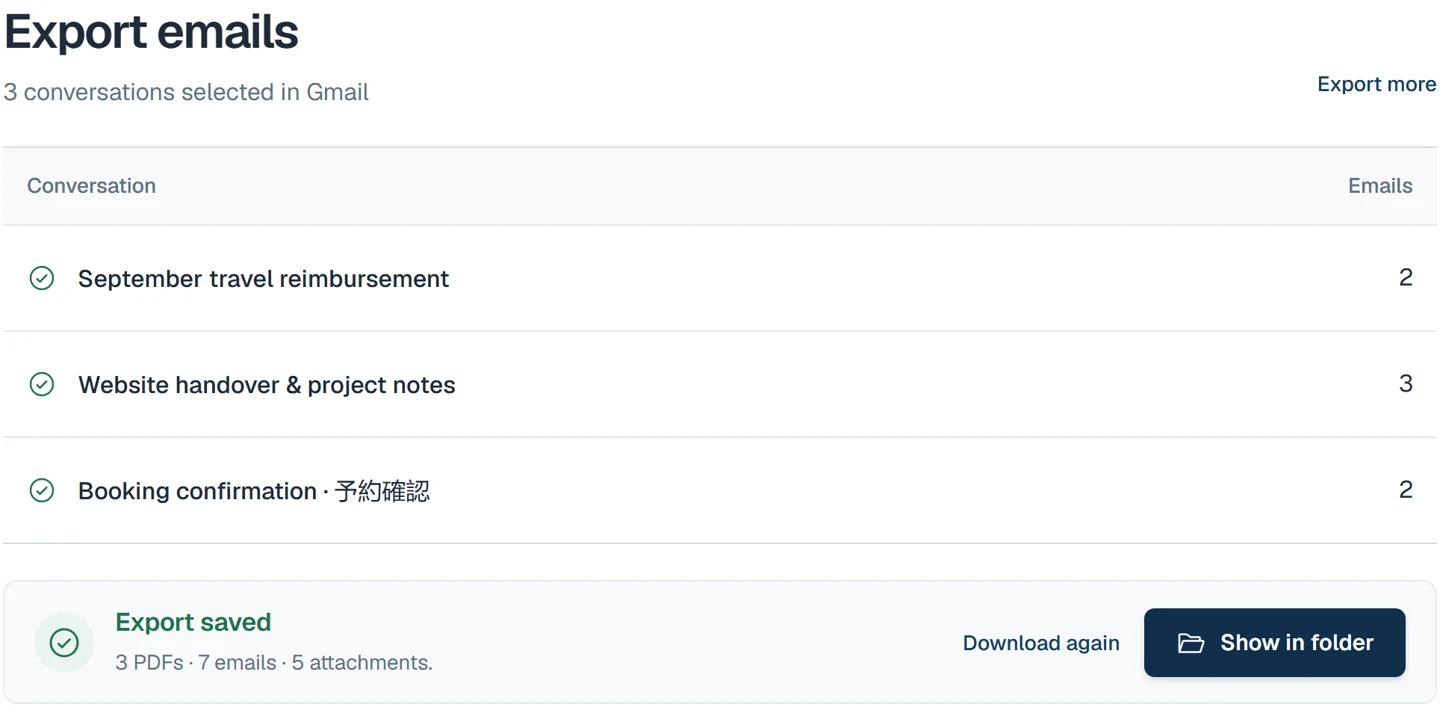
The export tab lists its subject and number of emails. All replies in that conversation are included, even when you selected it from a search result.
Click Export ZIP.
The extension reads the emails, collects attachments and prepares the PDF. Attachment counts update as files are found. Keep Gmail and the export tab open until the download finishes.
Open your saved files.
When Export saved appears, click Show in folder. Extract the ZIP, then open conversation.pdf inside the conversation’s folder. Its attachments are in the folder beside it.
What the ZIP contains
In the sample reimbursement conversation, the receipt and expense breakdown arrive in one message. A reply confirms the amount. The export keeps that exchange in the PDF and preserves the receipt PDF and expense CSV as usable files beside it.
Each conversation gets its own chronological PDF. Original attachment files are preserved separately so you can open, edit or share them in their original format.
01-September travel reimbursement/
  conversation.pdf
  attachments/
    001/
      01-receipt-september.pdf
      02-expense-breakdown.csv
export-report.json
READ-ME.txt
This is a real folder structure from our synthetic example. Attachment filenames get a numeric prefix to avoid collisions. The report records their original names, sizes and checksums.
Can I use Gmail’s Print instead?
Yes. For a conversation PDF alone, open the conversation in Gmail, click Print all, then choose Save as PDF in Chrome’s print dialog. For just one message, use that message’s More menu and choose Print. Google documents both options in Gmail’s printing guide.
You still need to download attachment files separately. Local Export for Gmail collects the conversation PDF and its original files into one ZIP.
A few things to know
Are attachments embedded inside the PDF?
No. They remain separate original files beside the PDF. Inline images are also kept as original files. Supported images are rendered in the PDF where available.
Will the PDF look exactly like Gmail?
The email body is rendered with readable message headers and pagination. Fonts and layout can differ from Gmail. Missing images are marked where they belong, and notices are included in the export report.
What does it cost?
Up to 3 conversations per batch are free, with no watermark or daily quota. Pro costs €29 once and supports up to 50 conversations per batch on 2 active browsers. Both plans support up to 200 emails and 100 MiB of source content plus fetched images per export. Large individual files and unsupported layouts can require a smaller batch.
Are my emails uploaded to Sami Studio?
No. Export processing happens on your device. Gmail and internet access are still required. External images can load through Google’s Gmail image proxy; you can turn them off in Export details. Checkout and Pro licensing use separate server requests, without your Gmail messages or attachments.